
AI Product Photography
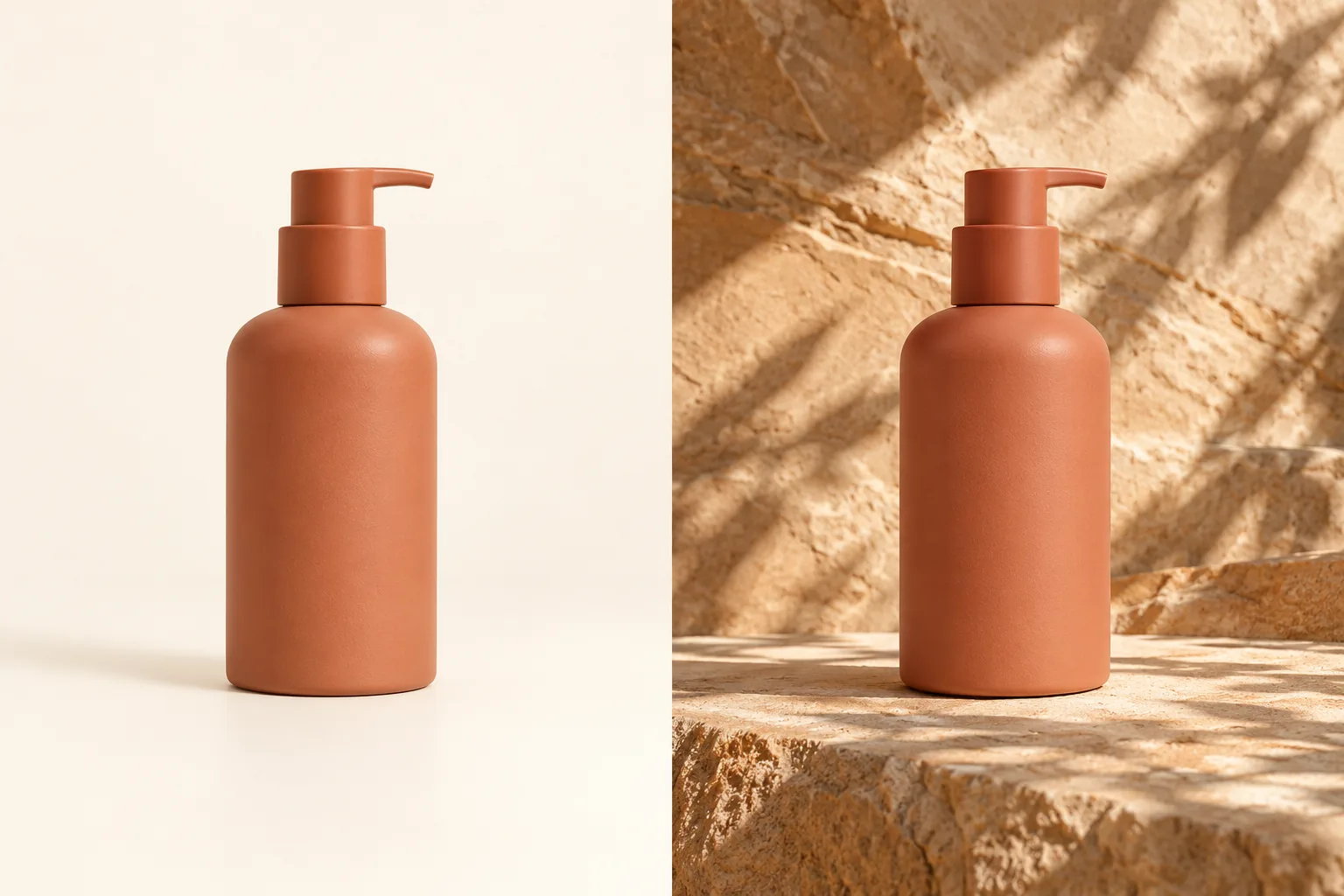
Create a scene around your product photo. Choose the surface, lighting, and setting while keeping product details in view.
 BeforeAfterExample
AI Product Photography
Upload an image, describe your changes, and generate a new image.
Click to upload or drag and drop
JPG, PNG or WebP · Up to 10 MBChecking generation availability…
No images yet
Your completed images will appear here.
Combine a product reference with a scene description, then review the product’s shape, color, and markings in the result.
Product scenes to explore
- A plain catalog-style scene with soft, even lighting.
- An editorial setting with stone, fabric, or restrained props.
- Different backgrounds around the same product reference.
How to create a product scene
- 01
Upload a clear product view
Choose an image that shows the shape, material, and important label details.
- 02
Describe one scene
Name the surface, light, and setting. List the product details to keep.
- 03
Inspect before use
Compare the result with the real product, especially labels, proportions, finish, and color.
Try this prompt
Create a calm product scene with a warm sandstone surface, soft side light, and subtle botanical shadows. Keep the bottle silhouette, terracotta finish, pump orientation, size, and camera angle. Use minimal props and add no writing or extra products.
Frequently asked questions
Will product labels and logos stay exact?
Exact text and logo preservation is not guaranteed. Check every mark against the real product and use precise editing when needed.
Can I use a generated scene as a catalog image?
Review it against the physical product and the destination’s requirements first. A convincing scene can still change product details.
Should I add many props?
Start with one surface and one lighting direction. Keep props limited so the product stays clear and its scale remains believable.