
AI Background Changer
Put your subject in a new setting. Describe the surface, perspective, and light so the scene fits together.
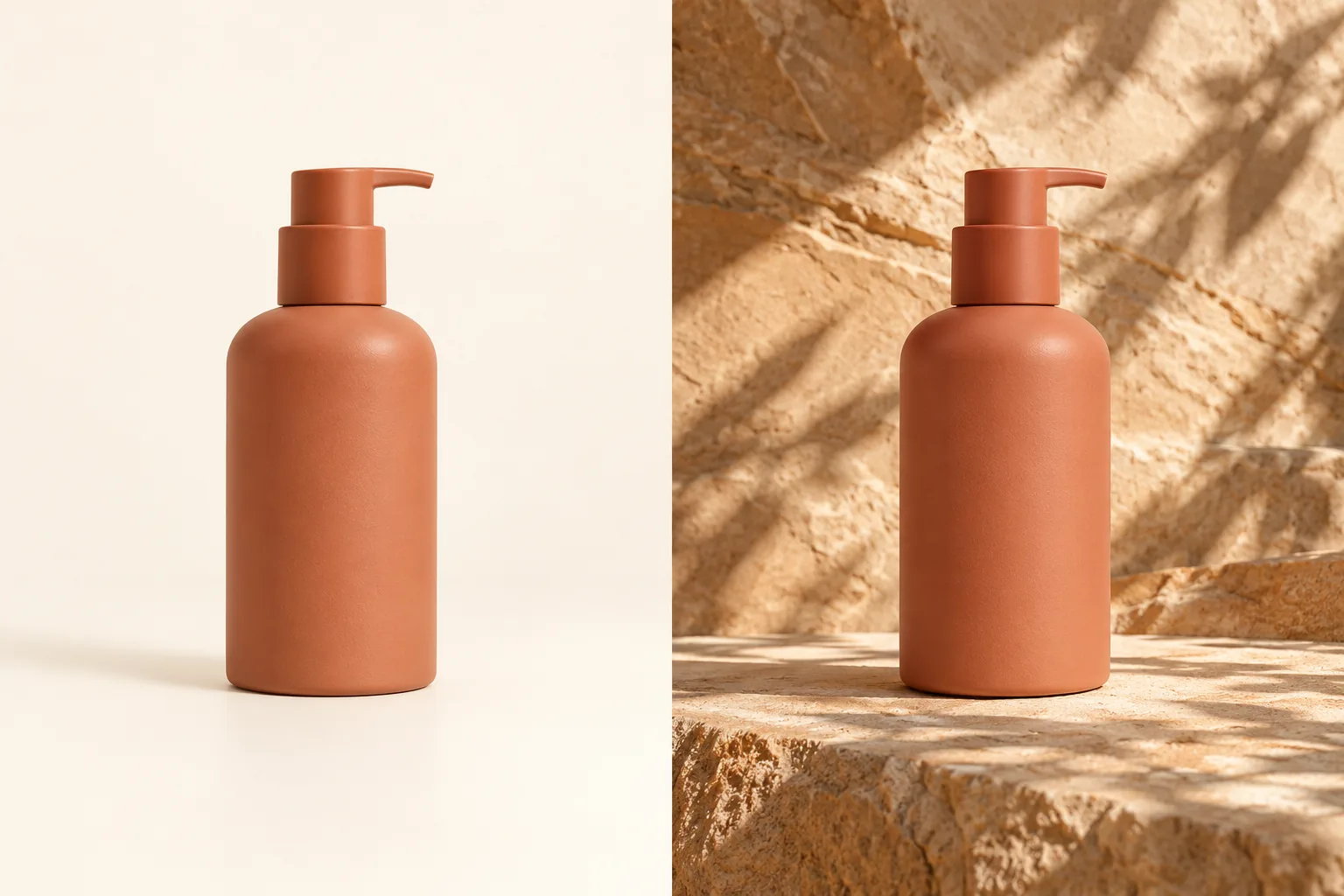 BeforeAfterExample
AI Background Changer
Upload an image, describe your changes, and generate a new image.
Click to upload or drag and drop
JPG, PNG or WebP · Up to 10 MBChecking generation availability…
No images yet
Your completed images will appear here.
Request a complete scene around your reference subject, with matching perspective, light, and contact shadows.
Backgrounds to try
- A plain studio background for a clean product scene.
- Stone, wood, or fabric surfaces with soft side light.
- An outdoor setting with a clear horizon and natural shadows.
How to change a background
- 01
Choose your subject
Upload a clear image and check fine edges such as hair, glass, and handles.
- 02
Describe the setting
Name the background, surface, light direction, and subject details to keep.
- 03
Review the result
After generating, inspect edges, reflections, perspective, and the shadow beneath the subject.
Try this prompt
Place the bottle on a low sandstone ledge against a warm stone background. Keep its silhouette, terracotta color, pump direction, size, and camera angle. Use soft light from the upper left and a natural contact shadow.
Frequently asked questions
Can I create a transparent cutout?
No. This workflow returns JPG images with a complete background. A white background is not transparency.
Why might a subject look pasted into the scene?
Check light direction, camera height, scale, edge blending, and the contact shadow. Describe the mismatch in your next prompt.
What works best for a product background?
Use a readable product view and a simple setting. Check the product’s shape, finish, and label after the edit.